
TuneCable iMusic Converter
CapCut is one of the most popular video editing applications today. Are you looking to add your favorite Apple Music tracks to your CapCut media library but unsure how to do it? This tutorial covers everything you need to know. No matter whether you're on a computer (PC or Mac), an iPhone, or an Android device, this guide has you covered. In the following sections, we will provide a detailed walkthrough on how to add music to CapCut from Apple Music.
Not directly. Apple Music subscription downloads cannot normally be imported directly into CapCut as regular local audio files. This is because the downloaded tracks are protected and are intended for playback within the Apple Music app rather than as standard audio files that other apps can access. If you purchased a song from the iTunes Store, however, the situation is different because current iTunes Store music purchases are DRM-free AAC files. CapCut supports common audio formats such as MP3, WAV, M4A, and AAC, although supported formats may vary by platform and version. Therefore, if you want to use an Apple Music subscription track in CapCut, you need to first convert it into a compatible local audio format.
To download Apple Music songs for use in CapCut, you'll need a third-party downloader. While online Apple Music download tools are convenient, they tend to be far less stable than desktop applications, which are more susceptible to issues such as service shutdowns, server crashes, and domain changes. To ensure a smooth downloading experience, this article introduces TuneCable iMusic Converter, a desktop-based Apple Music downloader. It supports 6 output formats, including MP3, AAC, ALAC, WAV, AIFF, and FLAC, covering the standard audio formats compatible with CapCut. It offers high-speed performance, allowing you to batch download your favorite tracks locally at up to 10x speed and then import them into CapCut.
TuneCable iMusic Converter
Step 1 Launch TuneCable and choose "Music App" or "Apple Music web player" as the audio source. Then log in to your Apple Music account. (We take "Music App" as an example here.)
Step 2 Click "Add", check the songs you want, and click "OK".
Step 3 Click "Settings" to adjust output format, bit rate, sample rate, and more.
Tips: If you want to add Apple Music to CapCut, it is recommended to choose AAC or MP3 as the output format, which takes up less space and is compatible with most video editing apps, including CapCut.
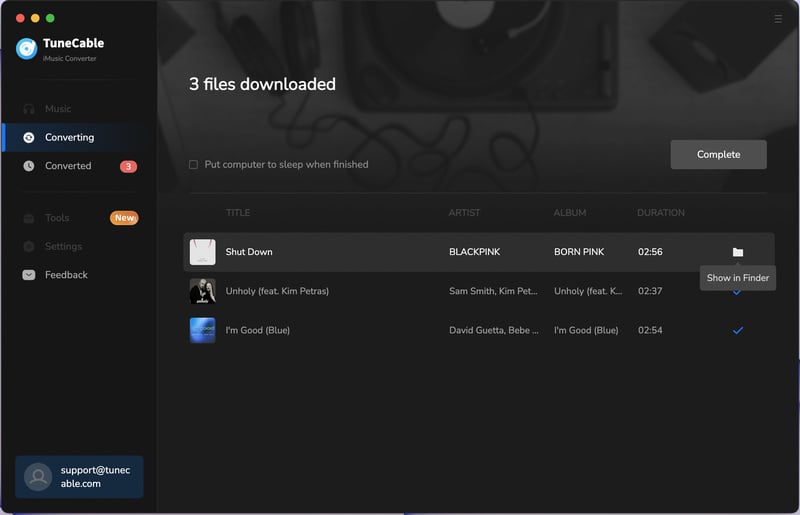
Step 4 Click "Convert" to start. Find your files in the "History" module.
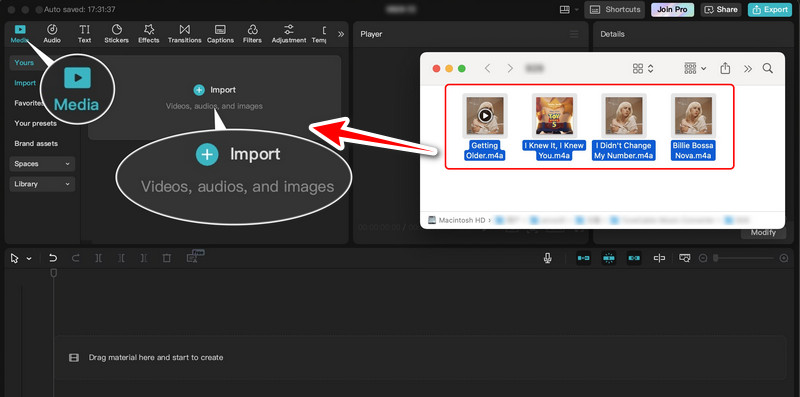
Once you've downloaded the Apple Music tracks as local audio files, you can import them into CapCut. The process is largely the same across the desktop versions (both PC and Mac). Here, we use the Mac version of CapCut as an example. The detailed steps for importing music are as follows:
Step 1 Open CapCut and click "Create project" in the center.
Step 2 Click "Media" in the top-left corner, then click "Import" on the right.
Step 3 Drag the Apple Music tracks downloaded via TuneCable iMusic Converter into the empty area (or simply select the audio and drag it onto the timeline below).
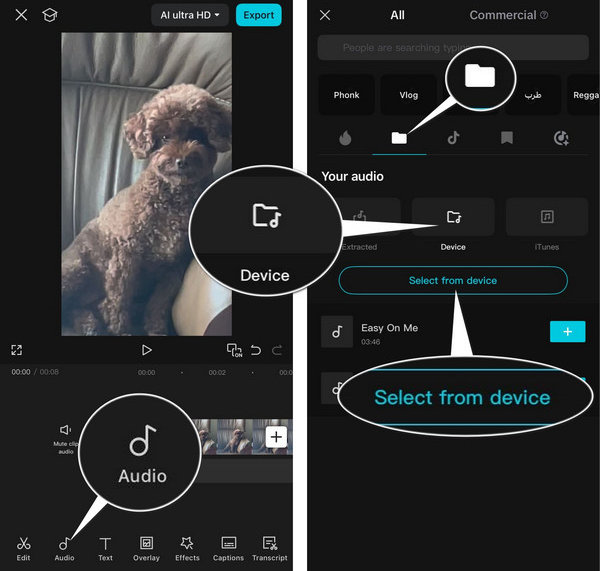
To add Apple Music to CapCut on an iPhone or Android phone, you first need to transfer the downloaded local audio files to the device. Then, follow these steps:
Step 1 Open the CapCut app on your phone and tap "New project" in the center, or simply open an existing project.
Step 2 Tap "Audio" in the bottom-left corner, then tap "Sounds".
Step 3 Tap the folder icon, select "Device" and then "Select from device", and choose the downloaded Apple Music track.
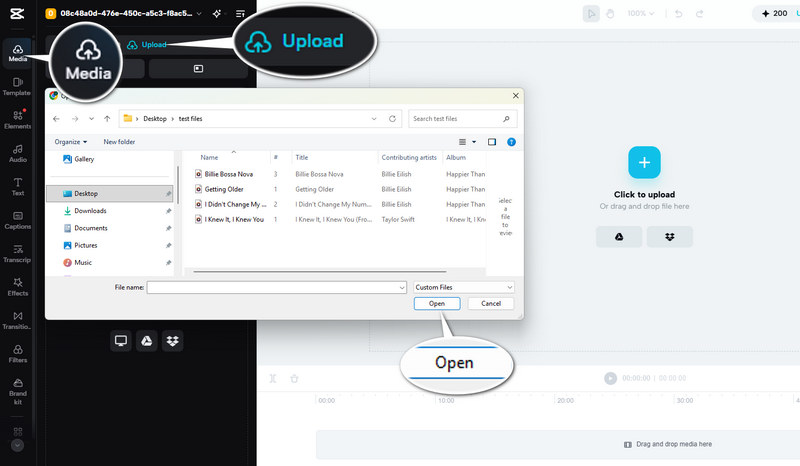
To offer users a lightweight editing option, CapCut has also launched an online editor. CapCut Online works with local files that you upload through the browser, so the Apple Music track must first be available as a supported audio file on your computer. Here are the detailed steps for adding Apple Music to the CapCut online editor:
Step 1 Open the CapCut online editor via any browser and open a project.
Step 2 Tap "Media" and "Upload".
Step 3 Select the downloaded Apple Music songs from the TuneCable output folder, and click "Open".
1. Apple Music tracks are DRM-protected: Music downloaded via the Apple Music app cannot be recognized on CapCut.
2. Unsupported audio format: An incompatible format (like OGG) will not be recognized, and it will not appear in the CapCut import menu.
3. File is still in iCloud: When using the Mac version of the CapCut app, CapCut cannot access downloaded MP3 audio files if they reside only in iCloud and have not been fully downloaded to the local device.
4. CapCut permissions are disabled: On iPhone, go to Settings > Privacy & Security > Photos and ensure CapCut has access permissions. On Android, enable storage/media access permissions under "App Permissions".
5. Loading delay: If your device contains a large number of files, it may take up to 30 seconds for CapCut's media page to display local assets. Simply restart the app or wait a moment.
CapCut supports common audio formats such as MP3, WAV, AAC, M4A, and FLAC, but it cannot import files protected by DRM encryption. Also, please note that supported formats can vary by platform and version.
Yes, it is possible, but it depends on whether you have downloaded the Apple Music tracks as local files. Songs downloaded directly within the Music app cannot be added to CapCut. You first need to use a third-party tool—such as TuneCable iMusic Converter—to download the music from Apple Music as local audio files (like MP3 or AAC) before you can add them to CapCut for editing.
Whether you can publish a video containing an Apple Music track depends on your rights to use that music. Having access to a song through an Apple Music subscription does not automatically give you permission to use it as background music in a publicly distributed video. Make sure you have the necessary rights or permission before publishing.
This article has provided a detailed guide on how to import Apple Music into CapCut. In short, you first need a third-party tool, such as TuneCable iMusic Converter, to download the music as a local audio file in a CapCut-supported format. Then, simply follow the step-by-step tutorial above for your device (PC, Mac, iPhone, or Android) to easily add audio to CapCut. Give it a try!
 What's next? Download TuneCable iMusic Converter now!

Ava Morrison | Senior Writer


