
 >
How To >
Spotify Music Tips >
>
How To >
Spotify Music Tips >
When you stumble upon a great song on Spotify, you might instinctively save it to your "Like Songs" or add it to other playlists. But as your collection grows, have you ever wondered: Is there a Spotify playlist limit? How many songs can one playlist actually hold? And what happens when a playlist is full, or even how to bypass the limit? In this article, we'll answer all these questions for you.
First and foremost, according to some Spotify users' actual feedback, there are some limitations on Spotify's playlists. However, we have not found any definitive statement on Spotify's official website. Feedback varies widely regarding the exact limit. Below is some of the feedback we have gathered:
Thomas: "Spotify has a limit of about 10,000 songs per playlist. While some playlists can have a little more but often less than 11,000 songs."
Julzeebo: "I just found out you can't have more than 200 playlists on your public profile."
vvaanneessaa: "I noticed that whenever I try to save a playlist to my library, I get an error message. ……Just in case it's needed, I have about 10,000 playlists saved."
What is the Spotify playlist limit? Generally, it can be summarized as follows:

Sick of hitting Spotify's playlist limit? Want to be free from track limits and playlist caps? Just use TuneCable Spotify Downloader to get your Spotify playlists downloaded to the local Windows, Mac, or Android devices, and manage them offline effectively. Now, click the button on the right to give it a try!
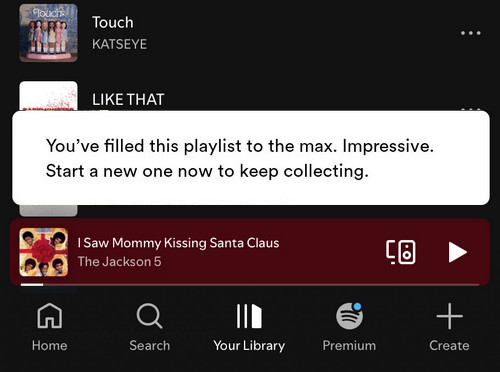
Some Spotify users reported that they receive messages like "Epic collection, friend. Your library is all filled up. To save more, you'll need to remove some songs" or "You've filled this playlist to the max. Impressive. Start a new one now to keep collecting." when they try to add songs. Apparently, it means you've hit the limit for the number of playlists or the number of songs within a playlist. If you want to remove these Spotify playlist limits, you may try the following methods:
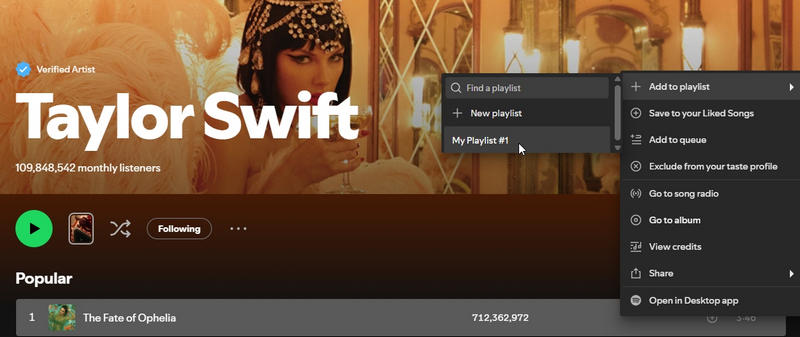
Based on the practical experience of some users, when you can no longer add songs to a playlist on the Spotify app, you can log in to the Spotify web player on your computer. Then, search for the song you want to add in the search bar, select it, and right-click to choose "Add to playlist". After closing the Spotify web player, restart the desktop or mobile Spotify app and log in to your Spotify account, and the newly added songs will appear in the playlist. According to the users' feedback, this method allows you to increase the number of songs in a playlist to 11,000.
Note: According to our survey, users say that once a playlist has around 11,000 songs, it hits a hard limit. After that, you can't add any more songs even through the Spotify web player, which means method 1 is not workable all the time.
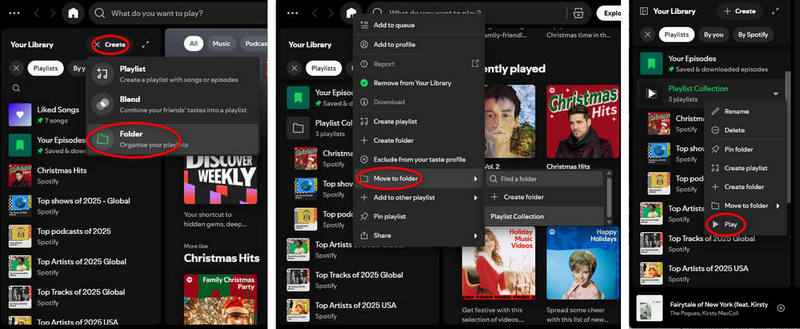
Spotify supports creating folders to store multiple playlists. Additionally, it also supports playing all the songs within a folder. Simply select the folder, right-click, and choose "Play" to play all the tracks in the playlists within that folder in sequence. Therefore, when a playlist exceeds 10,000 (or 11,000) songs, you can create other playlists to store more songs. Then, move all these playlists to the same folder. This way, the specific folder functions as "a single playlist" for playback, and you can bypass the Spotify playlist limit easily. Although creating multiple playlists and moving them to the same folder is somewhat troublesome and time-consuming, it is a feasible and practical method for most users.
Compared to the two methods mentioned above, which both have their drawbacks, method 3 offers many advantages for bypassing the Spotify playlist limit. Creating a local Spotify music library mentioned here, refers to downloading entire Spotify playlists to your local device and then managing or playing them offline using your local device. Compared to the Spotify app, Windows, Mac, or Android OS generally have no limitations on song file size, the number of songs, or the number of playlists. You won't have to worry about hitting the limit. Therefore, it is a perfect way to bypass the Spotify playlist limit.
To download Spotify playlists and create a local music library, you'll need to use a professional Spotify downloader. If you're not sure which downloader is best suited for this challenging task, you might give TuneCable Spotify Downloader a try. TuneCable Spotify Downloader, compatible with Windows, Mac, and Android OS, is an expert in downloading Spotify playlists, albums, podcasts, audiobooks, etc. The downloaded Spotify tracks will be saved in MP3, AAC, ALAC, FLAC, WAV, or AIFF format, with full ID3 tags and original audio quality.
Batch downloading Spotify playlists is one of its standout features, offering immense convenience to users with extensive music libraries. TuneCable not only supports selecting all tracks in a playlist for download with a single click, but also allows adding multiple playlists to the download task list for batch downloading at once. Another noteworthy feature is the ability to fully customize output file names by Track Number, Title, Artist, Album, Year, and Playlist Index. For instance, selecting "Playlist Index" and "Title" will name and sort your downloaded files in the exact order they appear in the playlist, resulting in names like 01 Love Story and 02 Cruel Summer.
TuneCable Spotify Downloader
Next, follow these steps to download Spotify playlists and create a local music library to bypass the Spotify playlist limit:
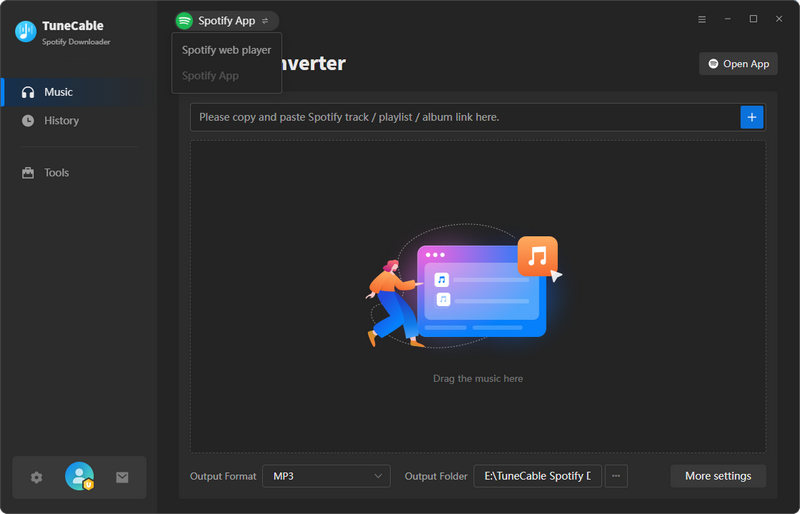
Step 1 Launch TuneCable Spotify Downloader and Select a Download Source
After launching the program, please select a download source, either the Spotify app or the Spotify web player. Then log in to your Spotify free or premium account.
Step 2 Choose Spotify Playlist to Download
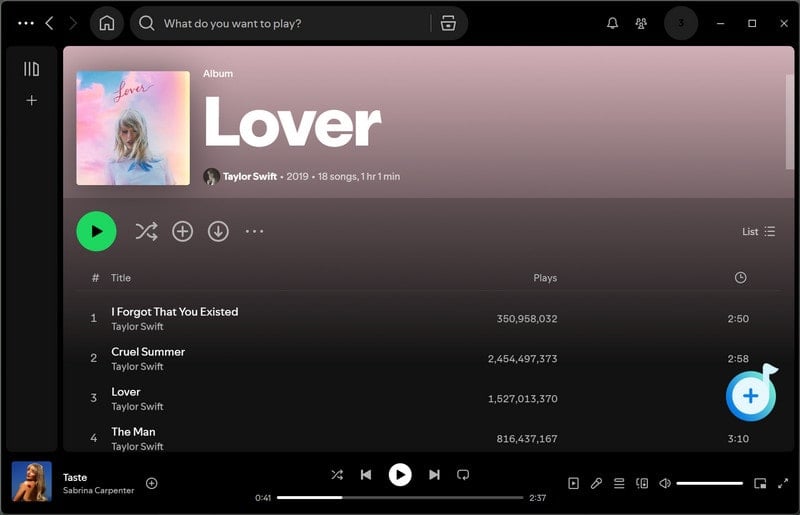
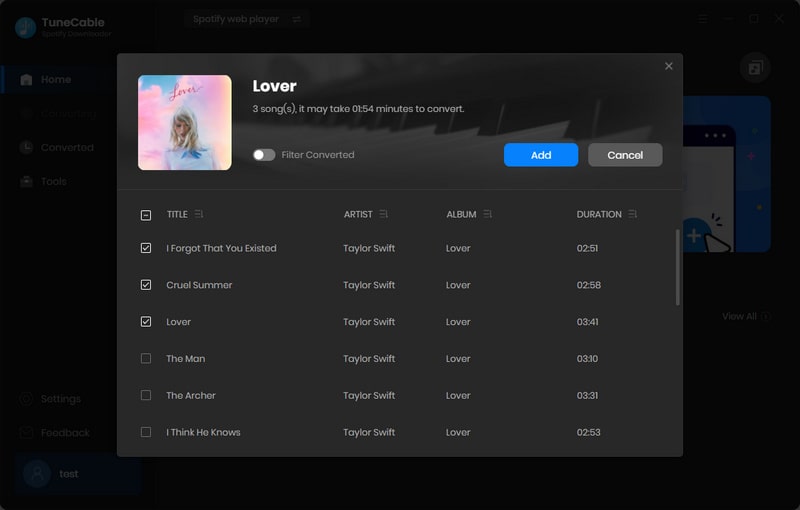
Find the Spotify playlist you want to download, then hit the "Click to add" button on the right to parse all the songs in the playlist. By default, the program will select all the songs in the list for you. If you want to download the entire playlist at once, you can simply click "Add" to add all the tracks to the download task list. Otherwise, you can uncheck the "Select All" option. Then, select the songs you want one by one and click "Add".
Step 3 Set Output Parameters for Spotify Music
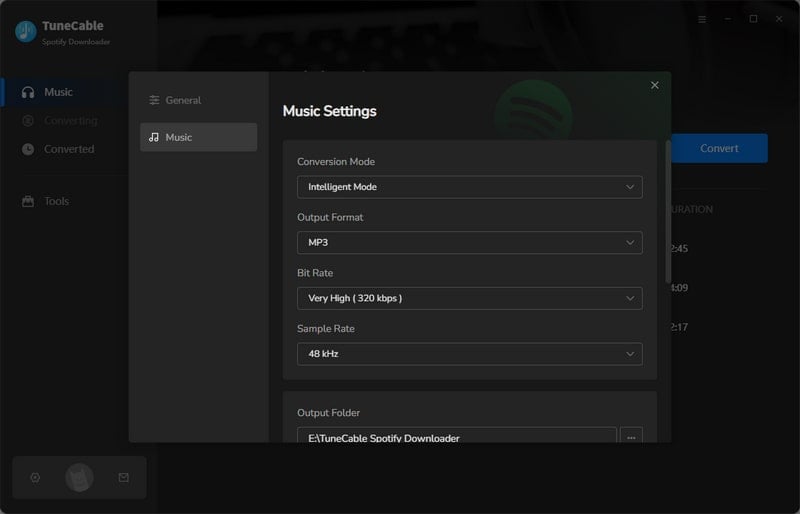
By clicking the "Settings" button, you can go to the settings screen, where you can customize output format, bitrate/bit depth, sample rate, output file naming, output folder organization, and more. For easier management, it is recommended to set "Output File Name" to "{Playlist Index} {Title}" and "Output Organized" to "Playlist". Of course, depending on your specific needs, you also have the following options to choose from:
Step 4 Click to Download Spotify Playlists to Local PC
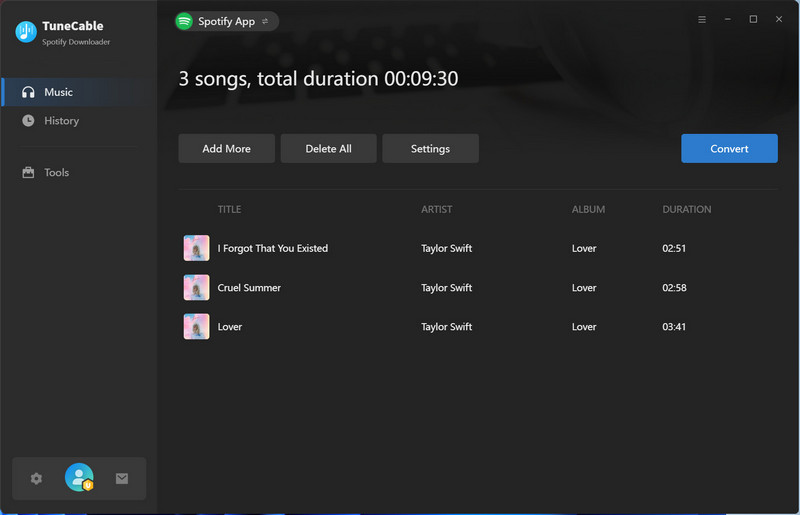
Next, click the "Convert" button to start downloading Spotify playlists to your local storage.
Step 5 Check Converted Spotify Lossless FLAC Music
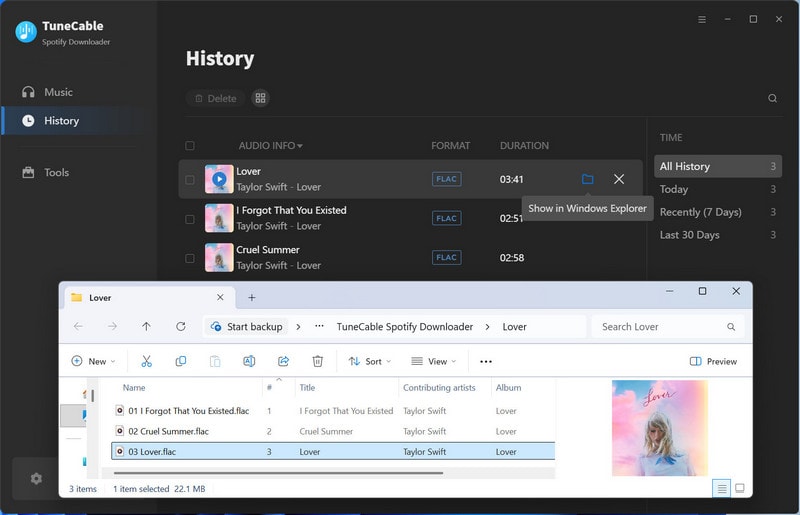
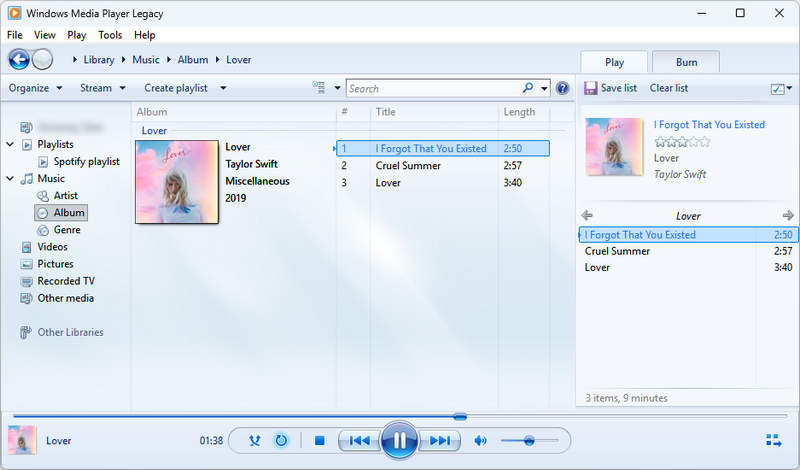
Once the download is complete, the output folder will automatically pop up, and you can then find all the tracks from your Spotify playlist there. At this point, you can open any media player, such as Windows Media Player, to load the downloaded Spotify playlist. With this, you can successfully build a local Spotify music library, adding tracks to your local library and creating playlists without any limitations.
Since the Spotify playlist limit exists and it's unknown if or when Spotify will remove these restrictions, some users might consider switching to other music platforms that don't have limits on the number of songs per playlist or the total number of playlists, such as Apple Music or YouTube Music.
Before switching to other music platforms, you might be reluctant to leave behind the playlists you created and the songs, albums, and podcasts you saved on Spotify. No worries. You may transfer the Spotify playlists to other music platforms with a professional tool, TuneCable Playlist Transfer. With a few clicks, you can seamlessly transfer your playlists between major streaming platforms like Spotify, Apple Music, Amazon Music, Tidal, Deezer, and YouTube Music. Click the download button below, and then follow the steps to transfer your Spotify playlists:
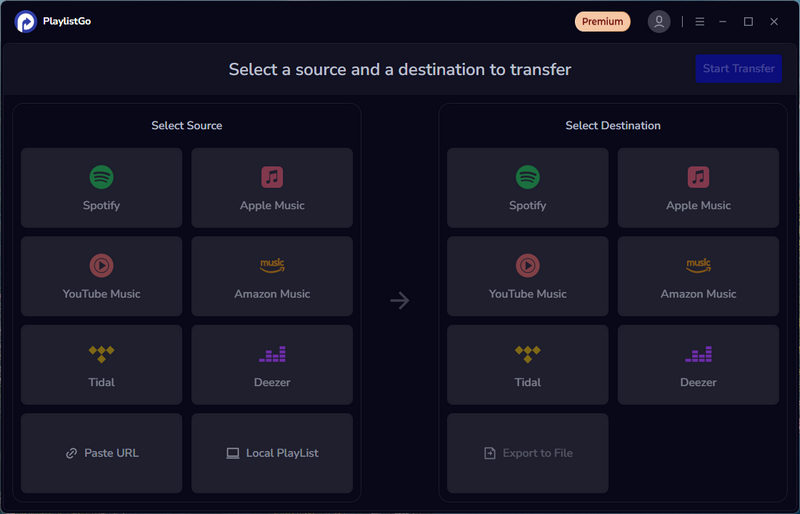
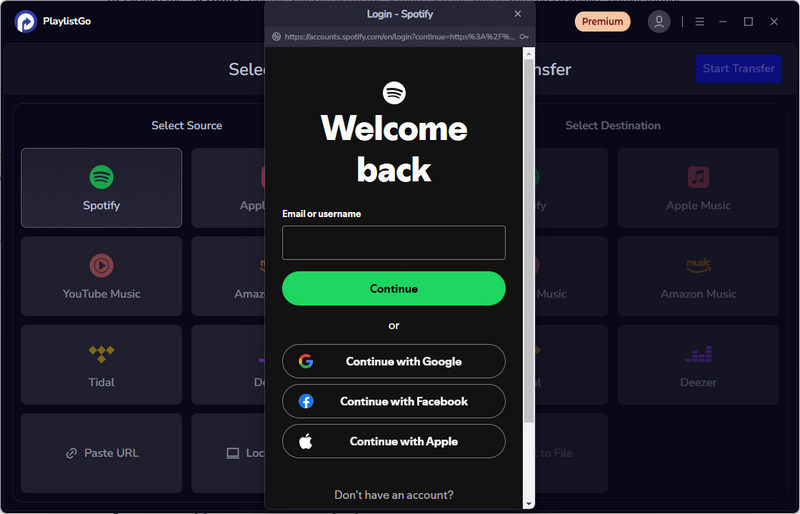
Step 1 Launch the program, select Spotify as the source, and log in to your Spotify account.
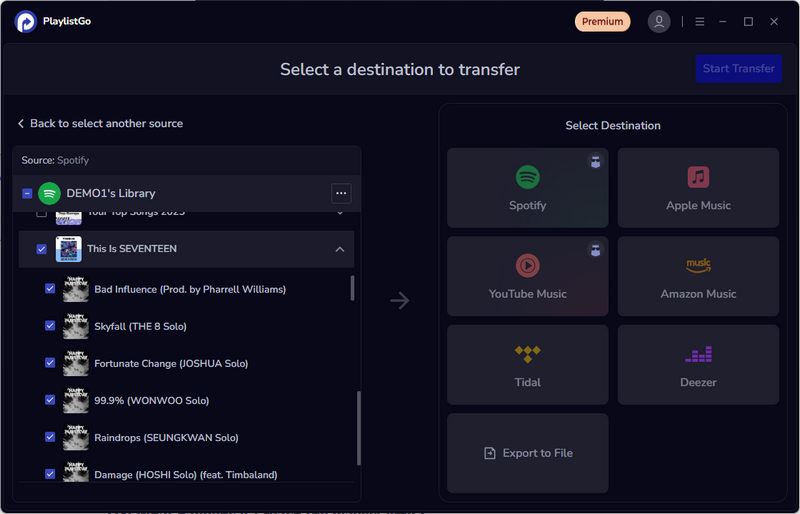
Step 2 Select the playlists you want to transfer to the other music platform.
Step 3 Select the destination platform. Log in to your account on the targeted music platform. Here, we'll use Apple Music as an example. Next, click "Start Transfer" to match songs.
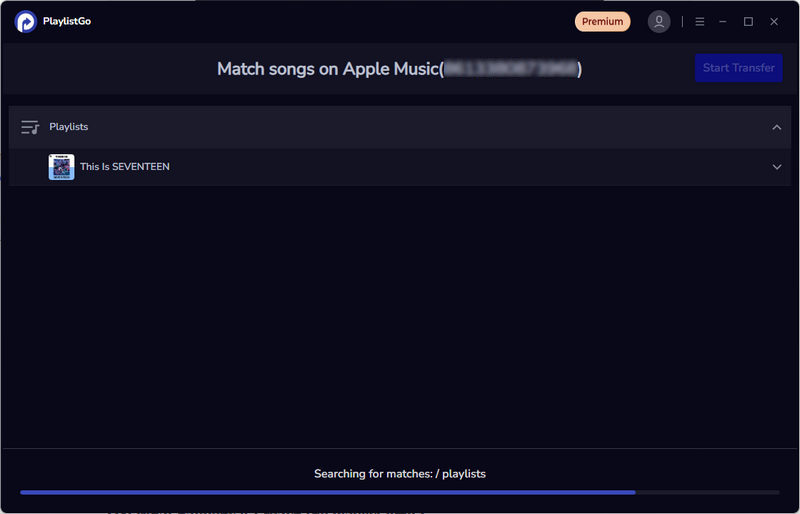
Step 4 After the matching is complete, click "Start Transfer" again.
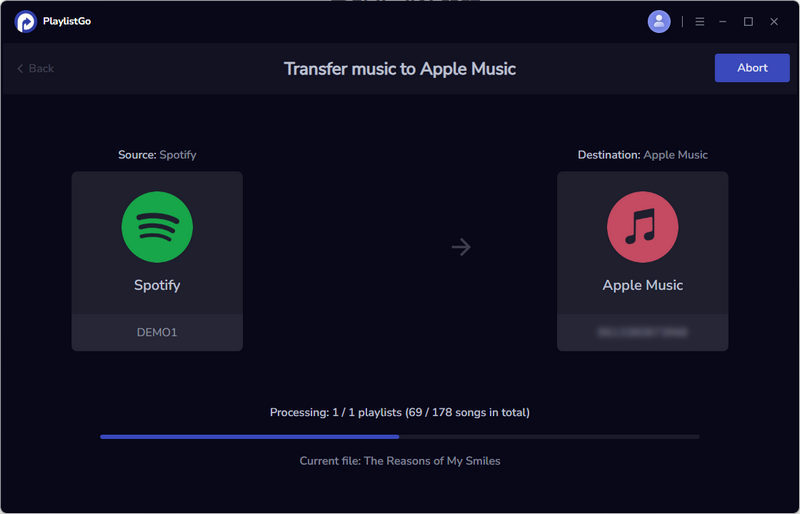
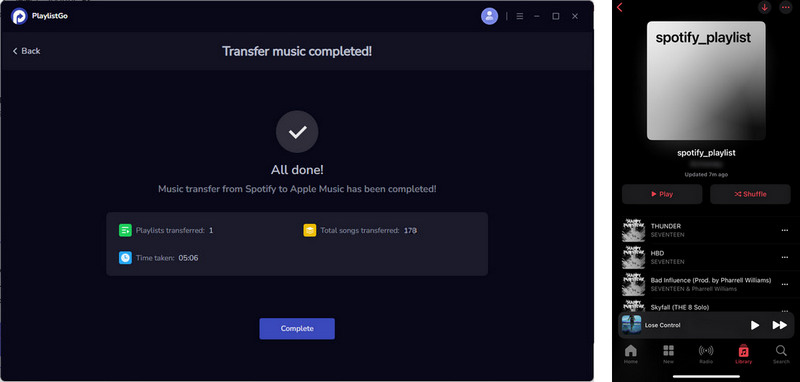
Step 5 After the transfer is complete, log in to the target music platform. Your Spotify playlists will be saved in the library.
The max number of songs is about 10,000 per playlist. Some could increase max songs in a Spotify playlist to 11,000 by adding songs on the Spotify web player.
You can have up to 10,000 Spotify playlists, but please note that only 200 public playlists will be visible to visitors on your profile page.
You may receive messages like "Epic collection, friend. Your library is all filled up. To save more, you'll need to remove some songs" or "You've filled this playlist to the max. Impressive. Start a new one now to keep collecting". At this point, you won't be able to add any more songs to the playlist unless you delete some of the existing songs. If you want to bypass Spotify's playlist limits, you can download the playlists locally with TuneCable Spotify Downloader, building a local private Spotify music library without any limitations. Additionally, you can also export your Spotify playlists to other music services (eg, Apple Music, YouTube Music) that allow larger playlists.
Although Spotify sets limits on the maximum number of playlists and max songs in each playlist, which is frustrating, there are some feasible methods to bypass these limitations. For some users, adding songs through the Spotify web player can increase the maximum number of songs per playlist to approximately 11,000. Alternatively, you can group playlists into a single folder and use that specific folder as one unified playlist. Both are simple and easy to implement, but unfortunately, they are not 100% applicable. For a definitive solution to bypass Spotify's playlist limits, we highly recommend downloading your Spotify playlists to local storage. This allows you to build a private, local music library, completely liberating you from limits on playlist counts, tracks per playlist, and file sizes. If you're interested, click the button below to try TuneCable Spotify Downloader for free!
 What's next? Download TuneCable Spotify Downloader now!

Ava Morrison | Senior Writer
TuneCable Spotify Downloader


