
 >
How To >
Spotify Music Tips >
>
How To >
Spotify Music Tips >
For those who have been using Spotify for a long time, the playlists, singles, albums, and artists in their music library are treasured accumulations of years of listening. Losing them by accident would be heartbreaking, and it happens way more often than we'd think. Many users in the Spotify community have been seeking help to recover Spotify playlists that were deleted unintentionally.
If you've also unfortunately encountered this frustrating situation, don't worry, this article will show you how to recover Spotify playlists step by step. To prevent any loss of data from your Spotify music library, we also provide a final solution: backing up all playlists, songs, albums, and artist collections in your Spotify library. This way, even if your account runs into problems in the future and you end up losing your saved playlists, you can recover them quickly.
First and foremost, why will Spotify playlists get lost? As mentioned above, this happens quite often. We found many posts on the Spotify community asking for help recovering lost Spotify playlists. Based on user feedback, here are the most common reasons:

Want to back up and restore your favorite playlists, songs, albums, and artists? Try TuneCable Spotify Downloader's newly launched feature! It allows users to back up and restore Spotify playlists in one click! Not only your own custom playlists, but also public playlists, singles, favorite albums, and artists can be backed up and restored at any time.
If you accidentally delete your favorite Spotify playlist, don't worry — you can get it back. Spotify thoughtfully provides the Recovery playlists feature for users to restore deleted Spotify playlists. Follow these steps to recover them:
Step 1 Go to Spotify Web Player and log in to your Spotify account. (Or simply visit this site and log in to your Spotify account.)
Step 2 Click your profile picture, then click "Account" and choose "Recover playlists".
Step 3 Select the playlist you want to restore from the list, and click the "Restore" button to recover Spotify playlists.
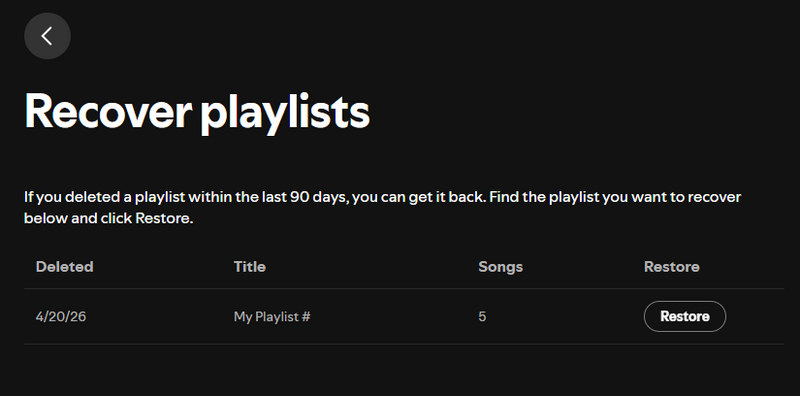
*Note:
Spotify's official Recover playlists feature has certain limitations. If you want to save your entire Spotify music library, including playlists, podcasts, favorite artists, albums, etc., with one click so that you can restore it at any time in the future, you can try our ultimate solution.
TuneCable Spotify Downloader is an all-in-one Spotify converter for Windows, Mac, and Android. In addition to downloading Spotify content in MP3, AAC, WAV, FLAC, AIFF, and ALAC formats, it also includes a wealth of tools such as an AA/AAX converter, a format converter, a CD burner, and a tag editor. TuneCable is committed to protecting users' account data. Currently, it has introduced a powerful new feature on its Windows and Mac versions that allows users to easily back up and restore the entire Spotify music library, including self-created playlists, liked songs, albums, podcasts, and followed artists. With this handy tool, switching between Spotify accounts would be as easy as pie. Next, we will focus on how to back up your Spotify library and how to recover Spotify playlist or other content in your Spotify library effortlessly, ensuring no data is ever lost.

TuneCable Spotify Downloader
Step 1 Launch TuneCable Spotify Downloader and log in to your Spotify account in the pop-up Spotify app or Spotify web player. Return to the main interface and click the three-dot button in the upper right corner. Select "Back Up Spotify Music Library".
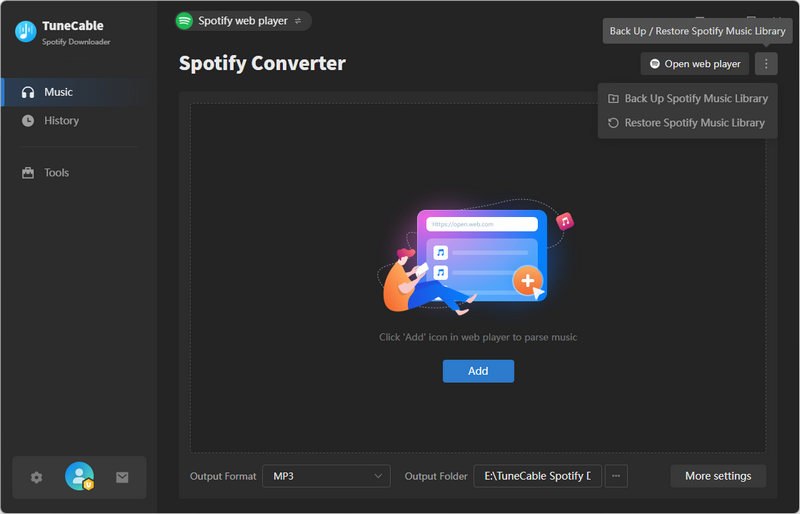
Step 2 In the new pop-up window, you can view the backed-up Spotify account information and specific backup content (including saved songs, videos, podcasts, albums, artists, and playlists). You can choose to automatically back up your Spotify library every time you launch the app. This ensures your music library data is backed up regularly for future use. Of course, you are free to choose the storage path where the backup files are saved. Next, click the "Back Up Now" button, and TuneCable will immediately scan all your Spotify playlists, favorite songs, albums, artists, podcasts, and more within your Spotify account. Then, it will back them up to your local computer, preserving them exactly as they were.
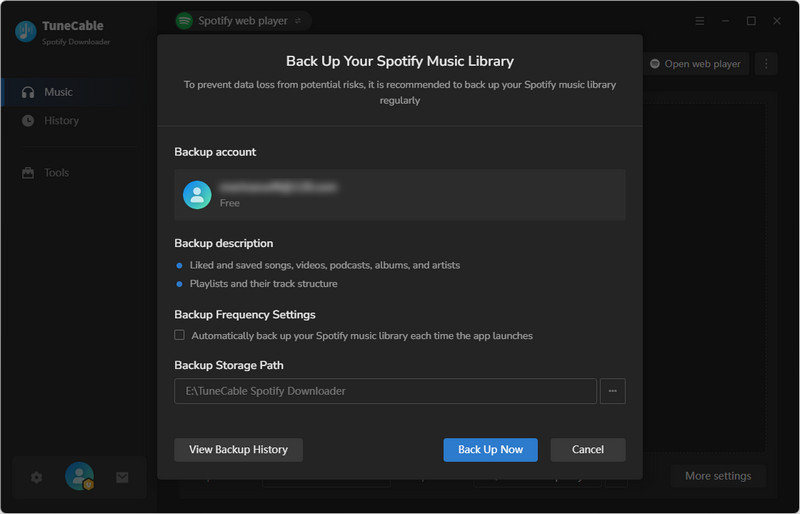
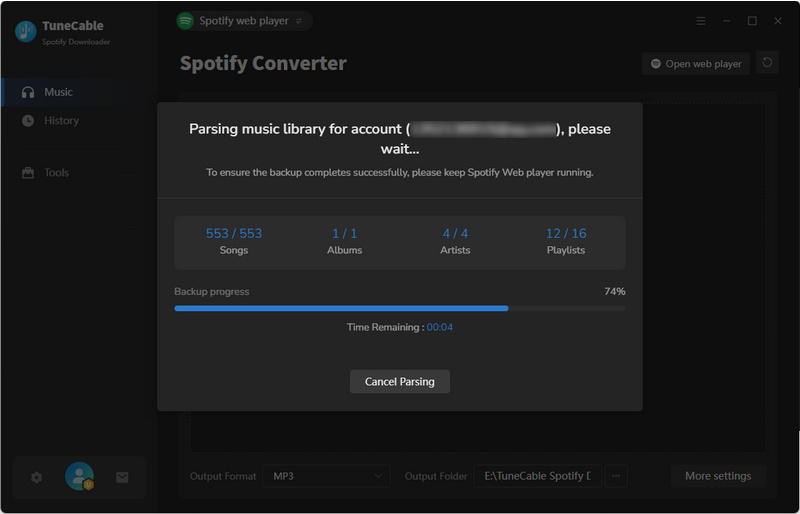
Step 3 When the backup is done, simply hit the "Complete" button to conclude. If you would like to take a look at the backup files saved on your computer, just click the "Open Backup File" button. This gives you direct access to all your backed-up data on the local drive.
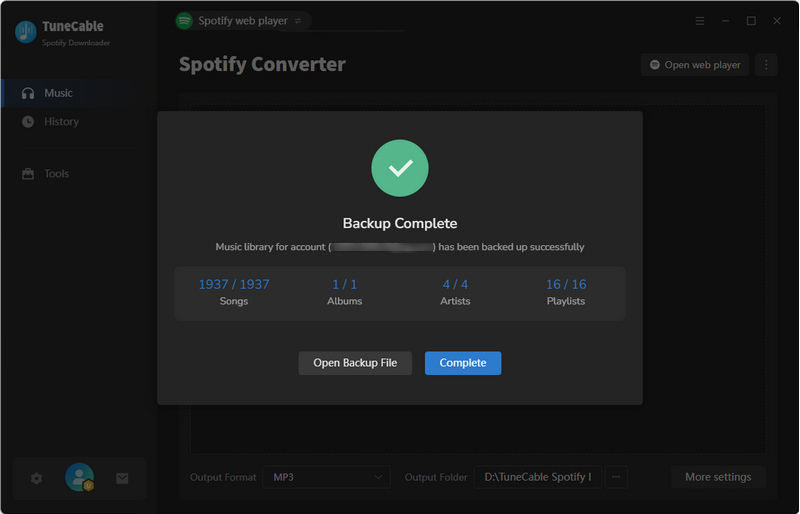
Once you have the backup files of your Spotify library on your computer, you can easily restore the deleted playlists, songs, videos, podcasts, and other Spotify content to their original state with a single click, without worrying about any data loss.
Unlike Spotify's official playlist recovery feature, TuneCable Spotify Downloader's Spotify library recovery feature has no limit for restoration. Not only self-created playlists, but also public playlists, as well as collected artists and albums, can be restored to their original state, completely unaffected by the passage of time. Whether 90 days, a year, or even more time has passed, you can still restore the backup to your Spotify account at any point. Now, follow the steps below to restore your Spotify library!
Step 1 Log into the Spotify account that you want to restore the backup to. After logging in, locate the three-dot icon in the top right corner and click on it. Next, simply hit "Restore Spotify Music Library" from the drop-down tab, and the backup file list will appear.
*Tips: If you want to restore the backed-up Spotify library to a new account, you should log in to the new one in this step.
Step 2 Select one of the backup files from the list. If you're unsure which one, click the "View Contents" button to confirm. If the backup file isn't in the list, click the "Select Another Local Backup File" button to locate other backups. After making your selection, click the "Start Restore" button to restore your Spotify music library immediately.
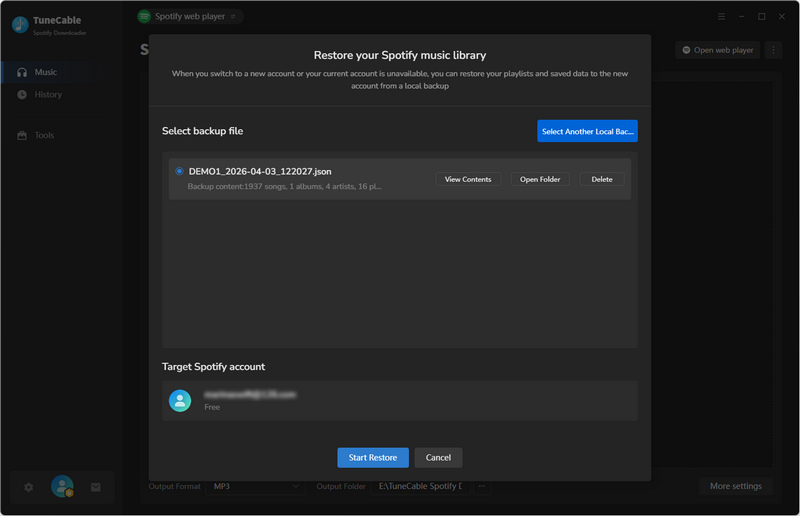
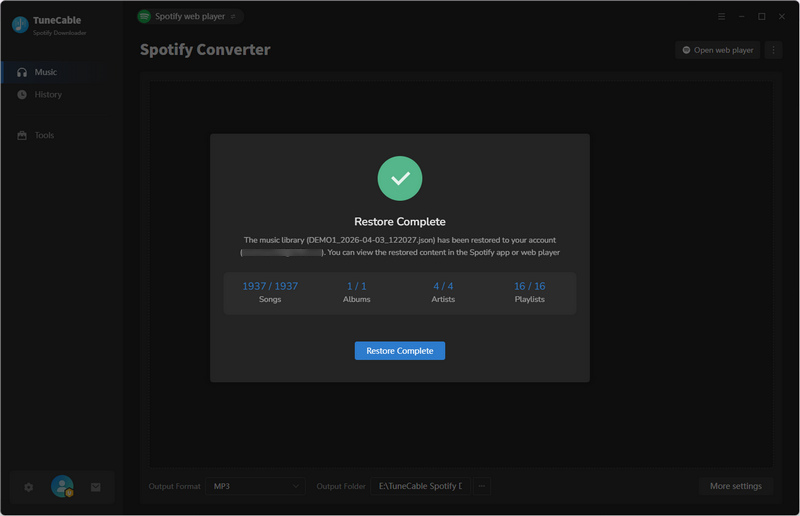
Step 3 All that's left to do is wait patiently. Your backed-up Spotify library will be completely recovered to your current Spotify account. Once it is finished, simply click on the "Restore Complete" button to end.
It depends on which type of playlists you saved. For the self-created playlists, the playlist URL will be invalid once you have deleted it. And after 90 days, you will not be able to recover it manually on Spotify. Even if you keep the playlist URL, you will only get a "Couldn't find that playlist" error upon accessing the playlist URL. For the playlists that are created by others, there is some possibility to recover. As long as the playlist creator did not close it, you can save it to your Spotify library again at any time. However, as the playlist might be updated by the creator as time goes by, the playlist content you receive may not be exactly the same as the original.
No. Currently, only recovering Spotify playlists on the Spotify web player via a browser is supported (see Part 2 for detailed steps). Alternatively, you can log in to your Spotify account using a web browser on your mobile phone to recover Spotify playlists deleted within the last 90 days.
No. When your Spotify account is suspended, all information within the account, including playlists you created, saved music, artists, albums, etc., will usually be unavailable subsequently. To recover your playlists, you must first contact the Spotify support team and request to regain access to your account. Once your account has been restored, your playlists will then be automatically recovered.
Yes, this feature is available to all users. Whether you have a free or premium account, you can try to recover self-created playlists deleted within the last 90 days by referring to the steps in Part 2.
Many Spotify users have experienced losing Spotify playlists at some point. And if they can't be recovered, it will take a lot of effort to rebuild the music library. But luckily, it is possible to recover it. In this tutorial, we've shown you how to recover deleted Spotify playlists within the last 90 days. Also, we've provided extra tips to prevent losing your Spotify playlists. Most importantly, we also offer the ultimate solution: using TuneCable Spotify Downloader to back up and restore your Spotify music library, including various types of playlists, saved songs, artists, albums, podcasts, and more, with no time limit to recover.
With TuneCable, you'll never have to worry about accidentally deleting or losing your Spotify playlists again. This powerful tool enables you to recover Spotify playlists anytime, anywhere. Haven't backed up your Spotify library yet? Then now is the time. Click the button below to download TuneCable Spotify Downloader to start backing everything up, just in case something unexpected happens! Take control today and keep your Spotify music library forever and always.
 What's next? Download TuneCable Spotify Downloader now!

Ava Morrison | Senior Writer
TuneCable Spotify Downloader


