
 >
How To >
Music Tips >
>
How To >
Music Tips >
Have you ever wanted your YouTube Music playlists to flow seamlessly from one song to the next, without those awkward moments of silence in between? This smooth transition is achieved through a feature called crossfade, a popular function on platforms like Spotify and Apple Music. Naturally, this leads many users to ask: Does YouTube Music have crossfade? Unfortunately, the answer is no; despite its massive library, this feature is noticeably absent. But don't let that stop you from creating a perfect, continuous mix.
This guide is here to show you exactly how to crossfade YouTube Music. We will walk you through the entire process, from using a reliable YouTube Music downloader to get your favorite tracks to the best methods for applying a YouTube Music crossfade on all your devices. Read on.

In simple terms, a crossfade is an audio technique where the end of one song gradually decreases in volume while the beginning of the next song simultaneously increases. This creates a continuous flow of music, eliminating gaps and making your listening experience feel more like a unified musical journey than a series of separate tracks. It’s a popular feature on many streaming platforms, ideal for keeping the energy up during workouts, parties, or just casual listening.
Not directly. Despite being a music streaming giant with a massive library and excellent recommendation algorithms, YouTube Music has not introduced a built-in crossfade feature for its users, even for YouTube Premium subscribers. This means that by default, you will experience a brief pause of silence between tracks. This gap can interrupt the mood, especially for genres like EDM or curated playlists designed to flow continuously. However, there are effective workarounds. In the following sections, we will guide you through the whole process to crossfade YouTube Music.
TuneCable BeatOne is a powerful music converter designed to help you download songs, albums, playlists, podcasts, radio shows, and audiobooks. It supports downloads from Spotify, Apple Music, Amazon Music, YouTube, YouTube Music, TIDAL, Deezer, and more. TuneCable allows you to convert YouTube to MP3, AAC, WAV, FLAC, AIFF, and ALAC. It preserves the original audio quality and ID3 tags, which are essential for managing an organized, high-quality music library. With batch conversion capabilities at up to 10x faster speed, it efficiently handles large playlists. Additionally, it includes handy tools like Format Converter, Burn CD, Audio Editor, Tag Editor, and more for enhanced music management. Once your YouTube Music is downloaded, you can crossfade YouTube Music on any possible media player.

TuneCable BeatOne
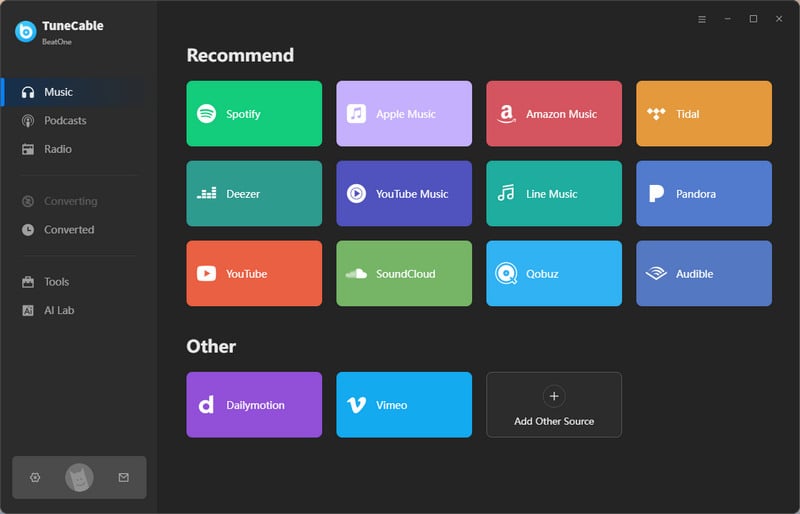
Step 1 Launch TuneCable BeatOne. From the main interface, specifically select the "YouTube Music" tab to proceed. Then log in to your YouTube Music account.
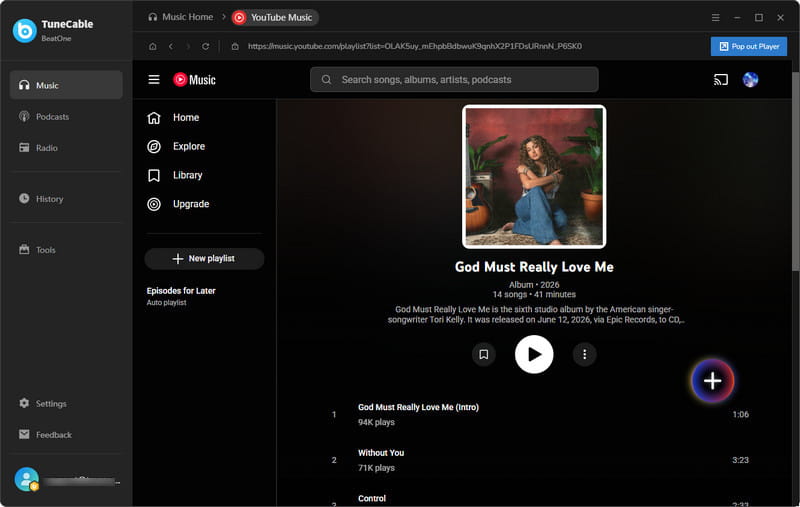
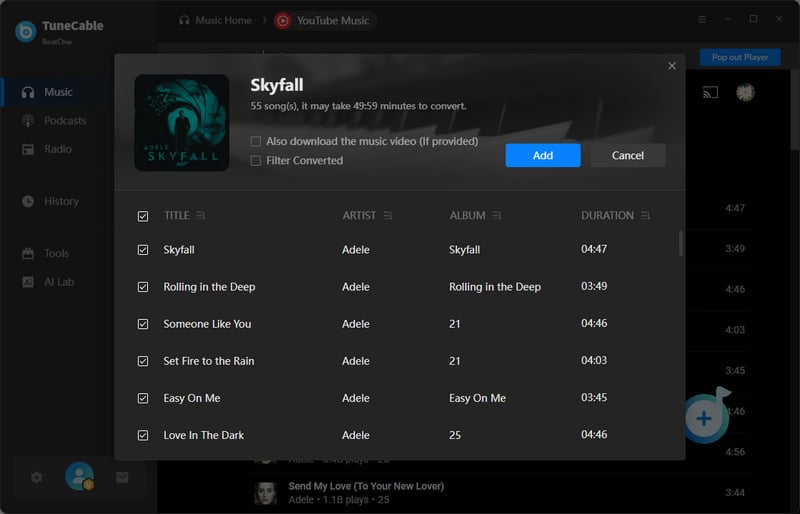
Step 2 Once you are successfully logged in, you can navigate the integrated YouTube Music web player to browse and find the specific songs, albums, or playlists you wish to download for crossfade playback. After locating your desired content, click the "Click to add" button in the bottom right to parse the playlist and then select the individual tracks you want. Click the "Add" button to import all your chosen music into the conversion list.
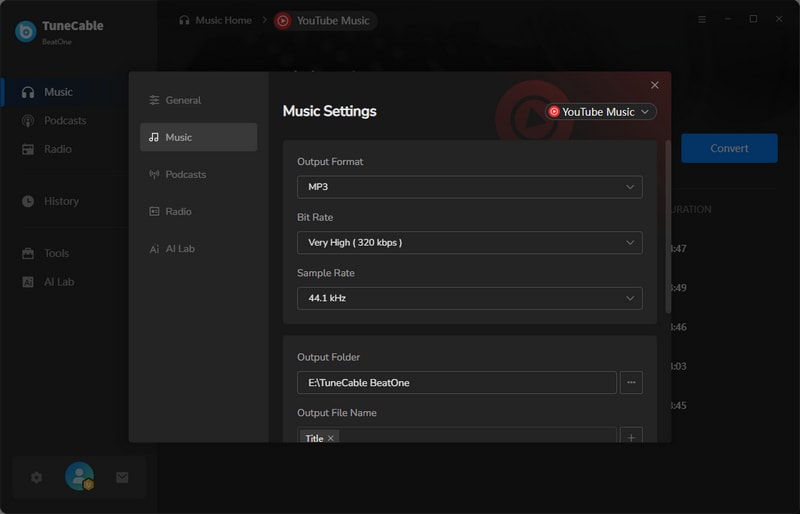
Step 3 Before starting the conversion, click on the "Settings" icon to configure your output settings. Here, you can fine-tune important parameters such as output format, bit rate, sample rate, output file name, output folder, and more.
Step 4 With everything set, click the "Convert" button to initiate the conversion. TuneCable will then efficiently process your download request. All successfully converted files will be readily available in the "History" section. These high-quality files are now ready for crossfade.
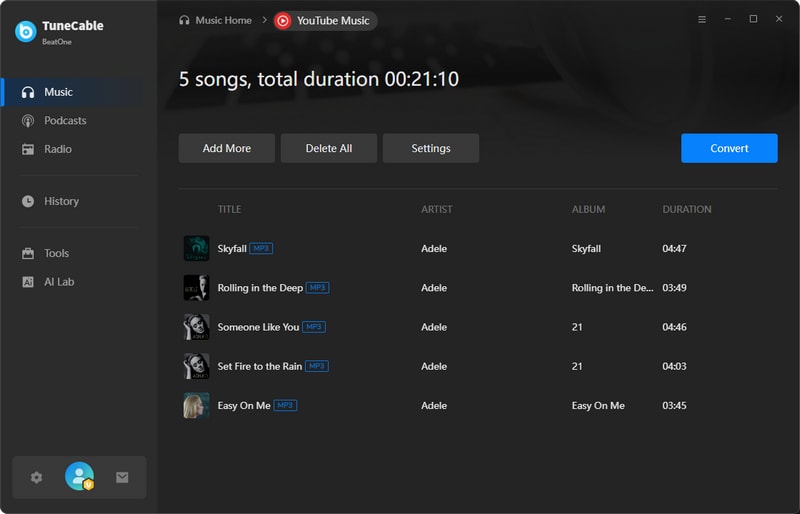
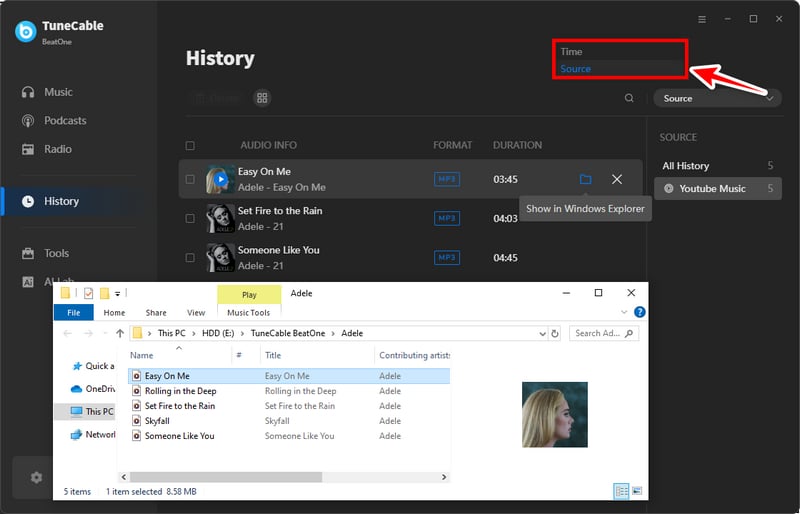
Now that you have successfully downloaded your favorite YouTube Music tracks as local files, YouTube Music crossfade becomes straightforward. The following step-by-step guides will show you exactly how to enable YouTube Music crossfade on Apple Music across different devices.
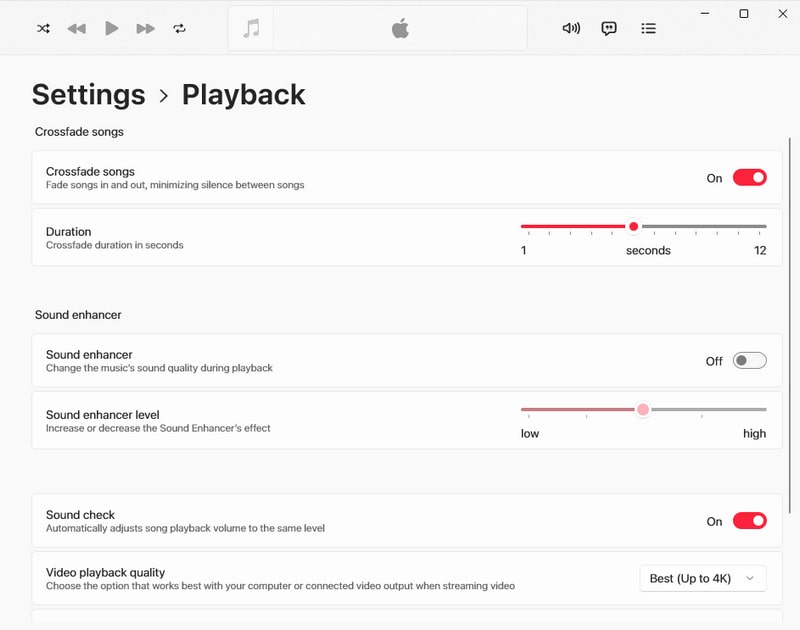
Step 1 After downloading your YouTube Music tracks as local files, open the Music app on your Mac and import these files into your library. Then navigate to "Music" in the menu bar and select "Preferences."
Step 2 In the preferences window, click on the "Playback" tab and locate the "Crossfade Songs" option. Check this box to enable the crossfade functionality for your music playback.
Step 3 Adjust the crossfade duration by dragging the slider to select your preferred overlap time, which can range from 1 to 12 seconds. Your Mac will now automatically apply smooth transitions between all played tracks.
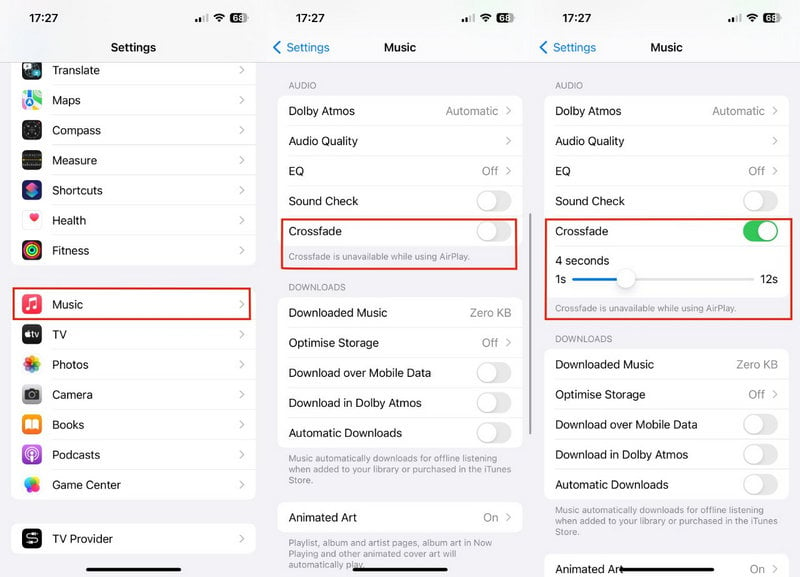
Step 1 Ensure your downloaded YouTube Music files are successfully added to your iPhone's Music app library. Then open your device's Settings app and scroll down to find and select "Music."
Step 2 Within the Music settings, locate the "Crossfade" option in the playback section. Tap the toggle switch to enable this feature, which will reveal a duration adjustment slider.
Step 3 Set your desired crossfade length by moving the slider left or right. Return to the Music app and play your downloaded YouTube Music playlist to experience seamless transitions between songs.
If you prefer using Spotify's intuitive interface and robust playback features, you can easily crossfade YouTube Music on Spotify. Follow the easy steps below.
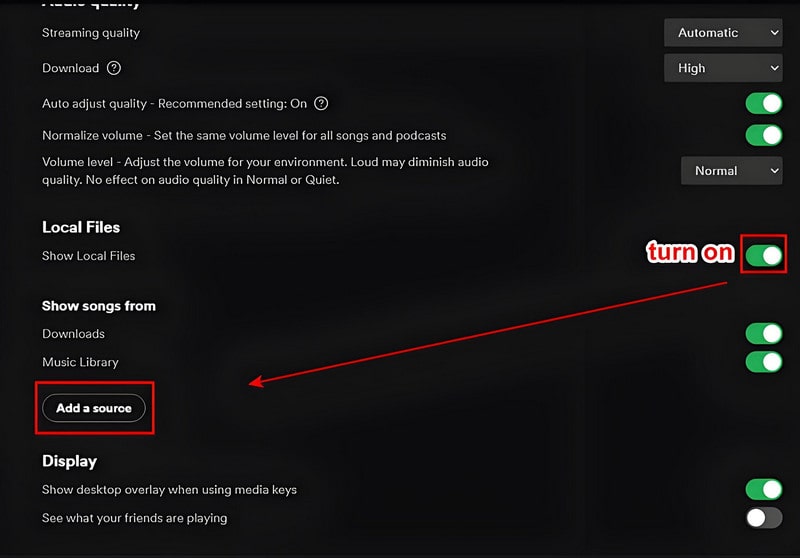
Open Spotify and log in to your account. Click on your profile photo and select "Settings" from the dropdown menu. Scroll down until you find the "Local Files" section, then enable the "Show Local Files" option. If your YouTube Music files are stored elsewhere, click "Add a Source" to browse and select the specific folder. Once added, all compatible audio files from that location will appear in the "Local Files" section within your Spotify library.
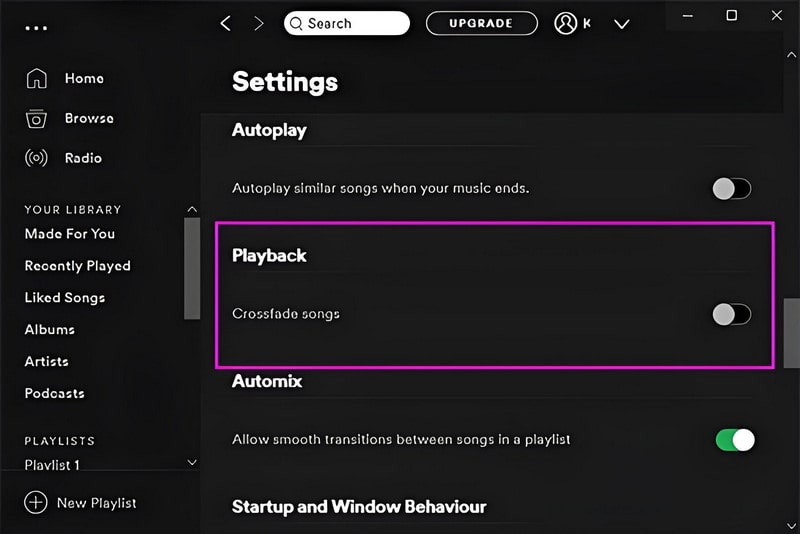
Return to the Settings menu by clicking your profile name and selecting "Settings" again. Navigate to the "Playback" section, find and enable the "Crossfade" option with an adjustable slider. Drag the slider to set your preferred crossfade duration between 1 and 12 seconds.
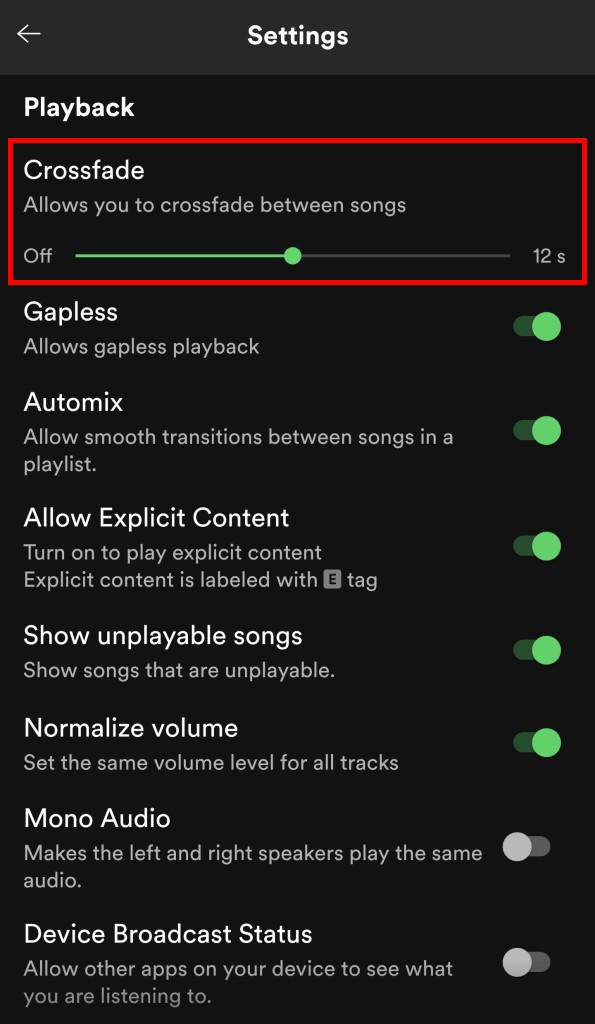
Step 1 Open the Spotify app and tap the gear-shaped Settings icon in the top-right corner of the screen.
Step 2 Scroll down within Settings and tap on "Playback" to access audio transition options.
Step 3 Locate the "Crossfade" option. Drag the slider to your preferred duration to activate seamless transitions between songs.
This guide has shown you that the key to achieving a perfect YouTube Music crossfade lies in using a professional YouTube Music converter like TuneCable BeatOne. By first downloading your favorite tracks, you unlock the ability to enjoy your music on platforms like Apple Music and Spotify. For a high-quality and efficient way to crossfade YouTube Music, try TuneCable!
 What's next? Download TuneCable BeatOne now!

Ava Morrison | Senior Writer
TuneCable BeatOne - All-in-one Music Solution

