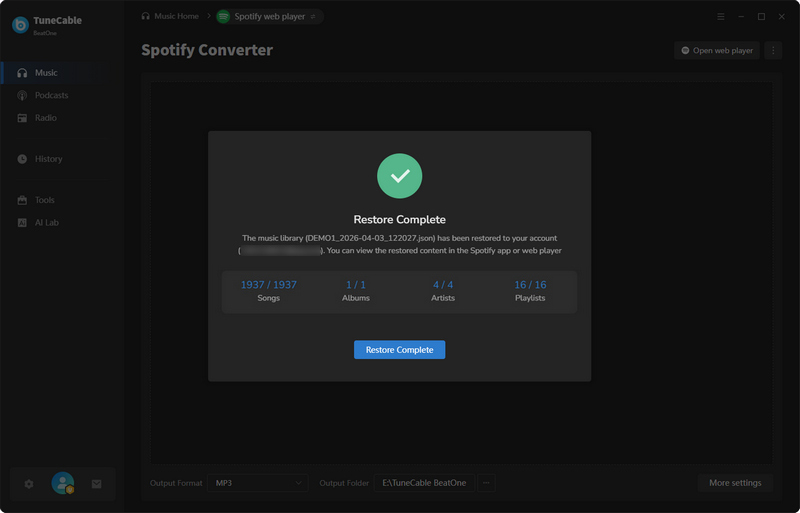
TuneCable is committed to protecting your account data. That's why we've introduced a powerful new feature that allows you to easily back up and restore your entire Spotify music library—including your self-created playlists, liked songs, albums, videos, podcasts, and followed artists. With just one click, you can switch between Spotify accounts effortlessly, ensuring no data is ever lost. In this guide, we'll walk you through the simple steps to back up your Spotify library and keep your music collection safe and accessible at all times.
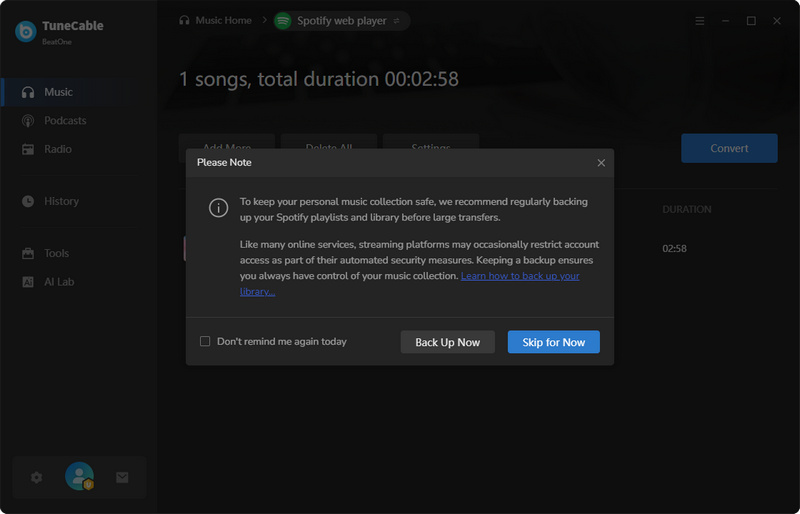
You can back up your Spotify music library locally by following these steps:
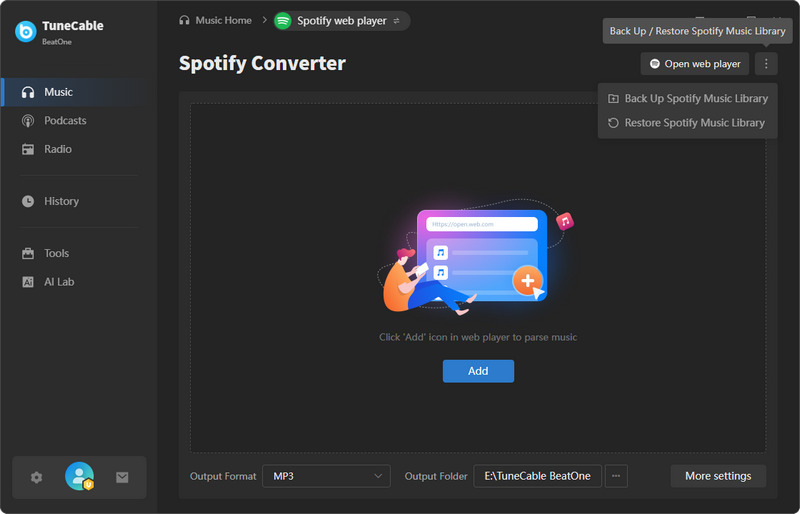
Step 1 Log into your Spotify account, either within the Spotify app or the embedded Spotify Web Player on TuneCable. Click the three-dot icon in the top right corner. Select "Back Up Spotify Music Library".
Step 2 Before starting the backup, please confirm the following details: the Spotify account you wish to back up, the specific content to be backed up, the backup frequency, and the backup storage path.
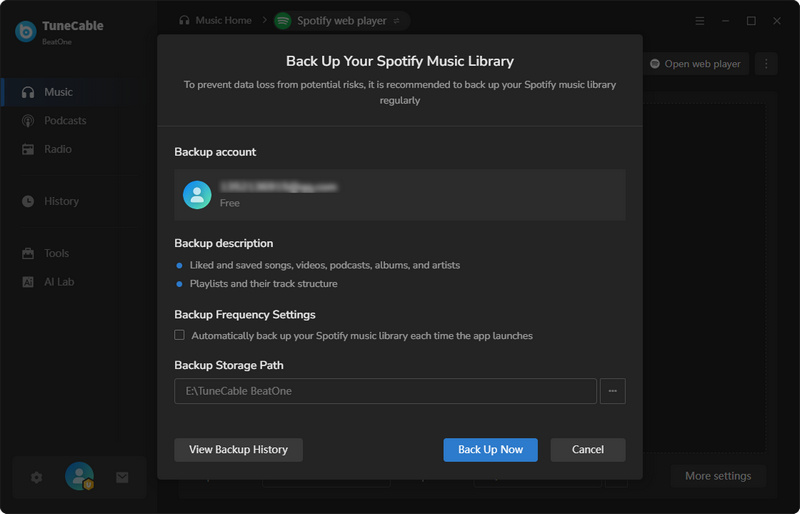
Step 3 Click the "Back Up Now" button. TuneCable will begin parsing your music library and backing it up locally.
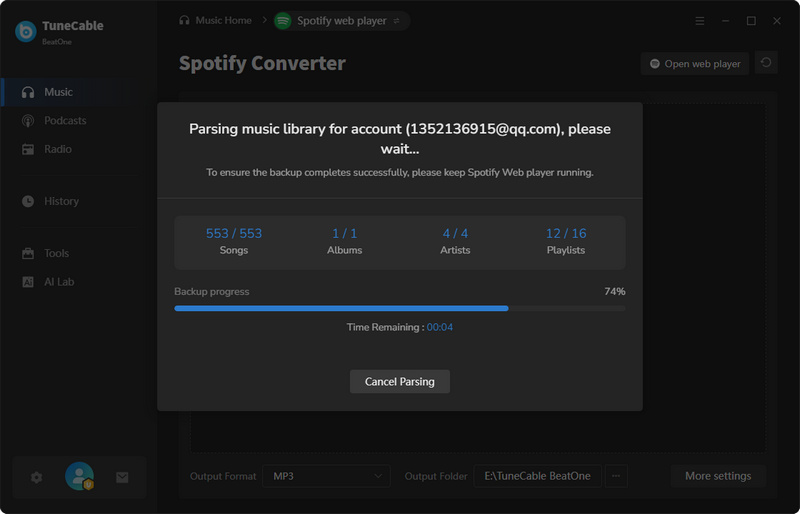
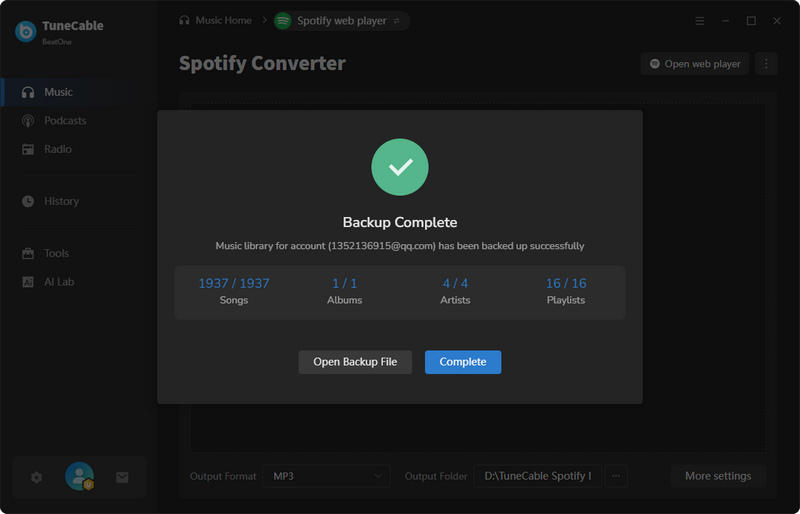
Step 4 Once the backup is complete, you can click "Open Backup File" to view the backup file, or simply click "Complete" to finish.
If you need to restore your music library backup to a new account, please follow the steps below:
Step 1 Log in to the Spotify account you want to restore the backup to. Click the three-dot icon in the top right corner. Select "Restore Spotify Music Library".
Step 2 Select the desired backup file from the list. Alternatively, if you have a backup file in the local storage, click "Select Another Local Backup File" and choose it. Then, click "Start Restore".
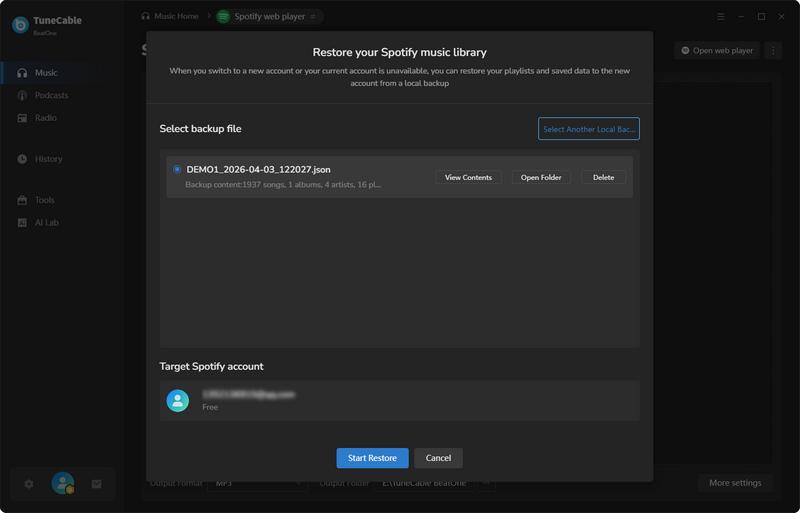
Step 3 Please wait patiently for a moment. Your backed-up Spotify library will be fully restored to your new account.